Search
Lightroom Presets
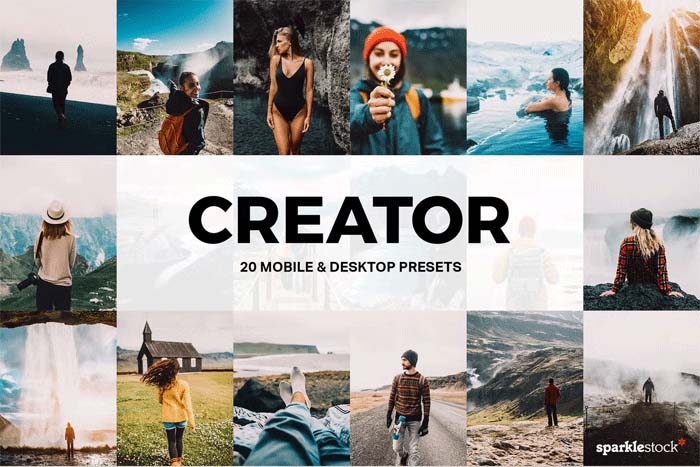
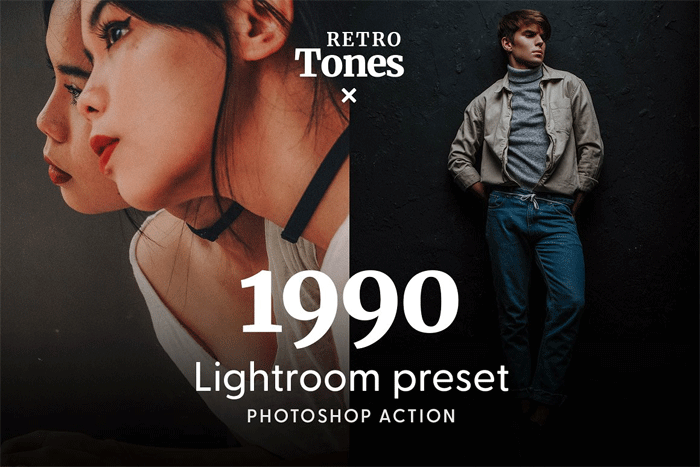
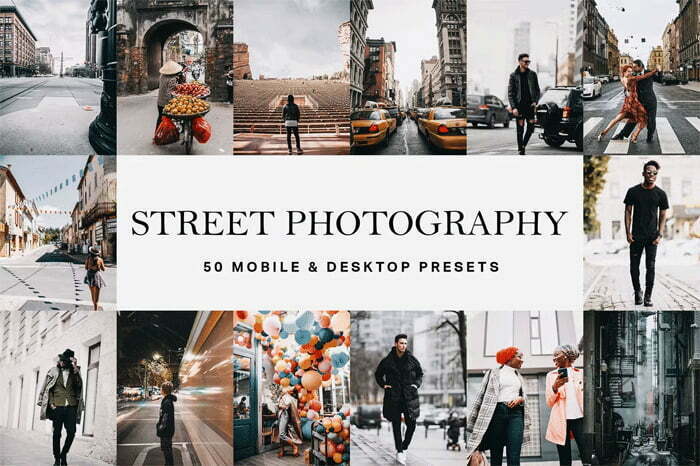
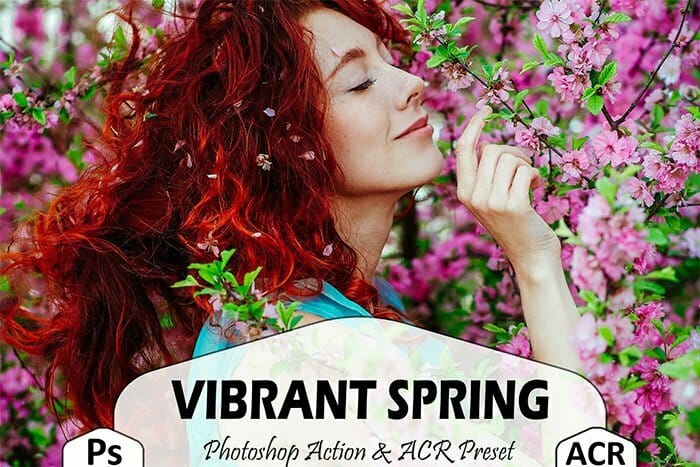
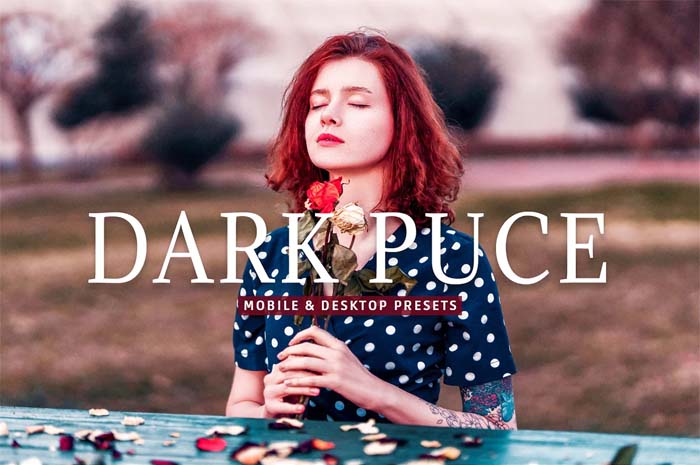
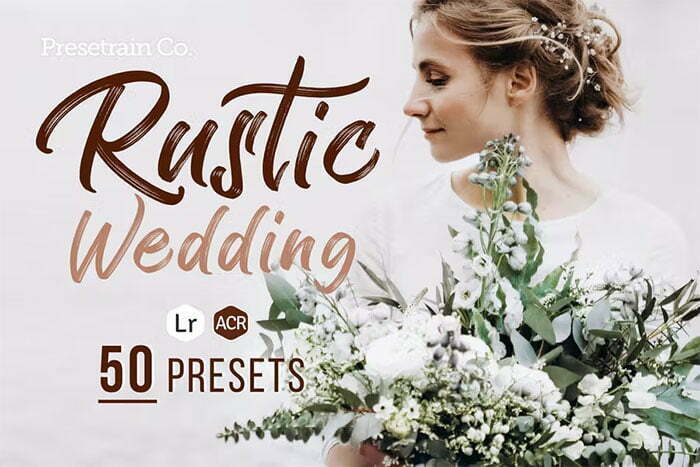
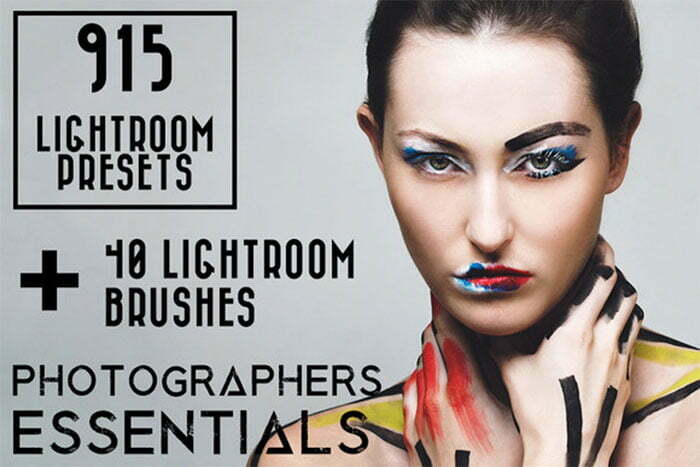
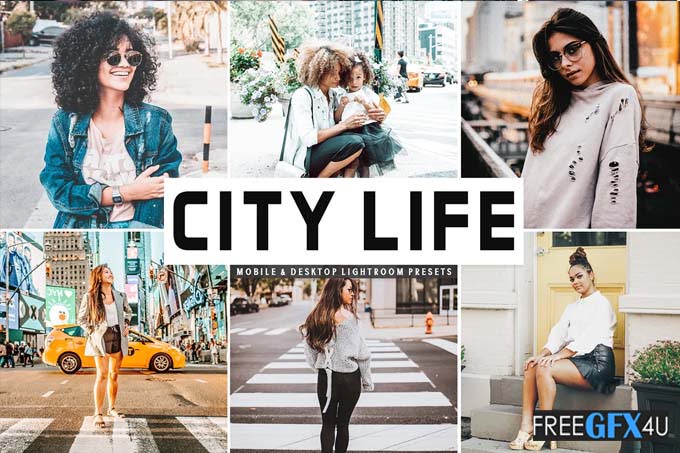
Welcome to our 1200+ Best Lightroom Presets Free Download 2025 collection for photographers and creators who want fast, beautiful edits. Here you will find Lightroom presets free download packs for portrait work, wedding photos, travel shots, and mobile editing. Each preset is fully editable and tested on both Lightroom desktop and Lightroom mobile, so you get consistent color and tone across devices.
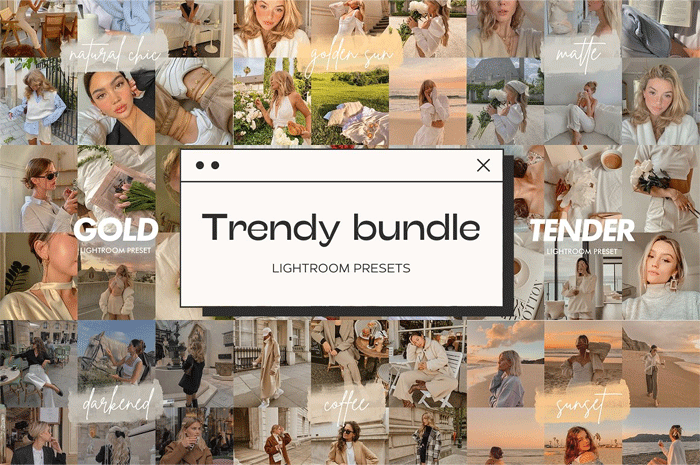
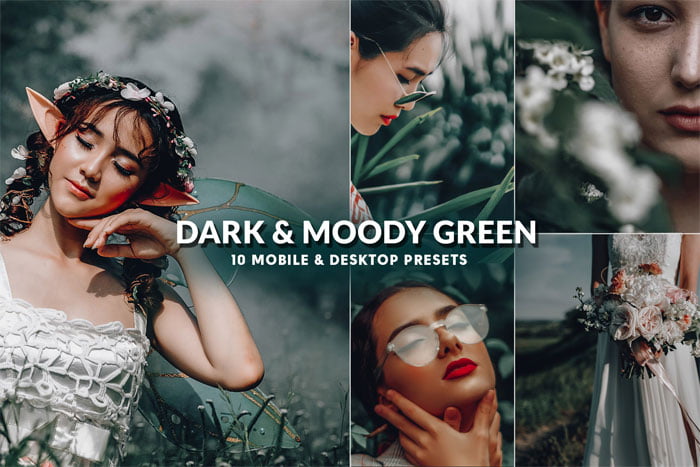
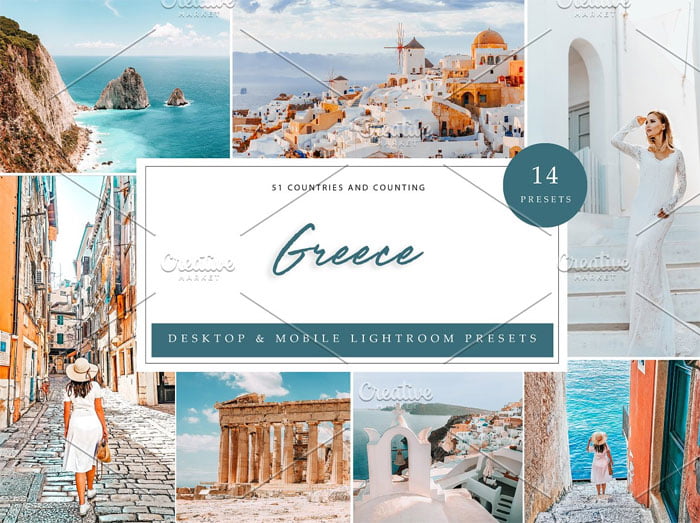
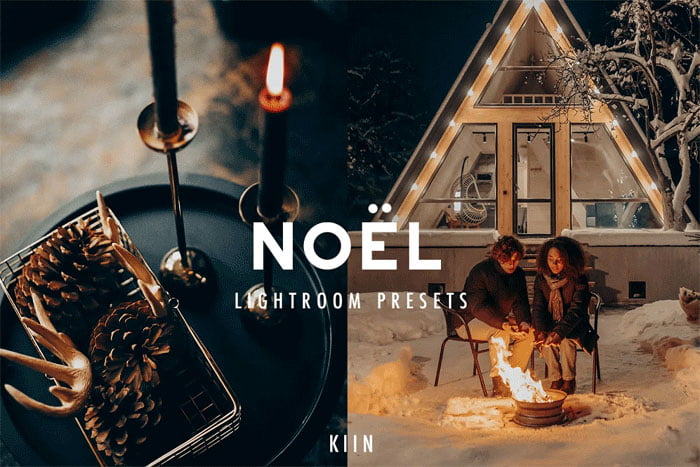
If you want presets that give a professional look without heavy editing, start here. Our Lightroom filters free packs include natural skin tones, cinematic color grades, and bright mobile-friendly filters. Every Lightroom preset pack includes preview images and simple install steps so you can apply and customize the look in minutes.
Best free Lightroom presets for effortless editing
Choosing the right preset saves time and helps you build a signature style. This collection focuses on practical presets that work well for portraits, couples sessions, travel, and landscape photography. We include both subtle film style looks and stronger cinematic grades so you can pick what fits your project.
We also note which packs are ideal for desktop editing and which are optimized for mobile Lightroom apps. All presets are provided with notes on exposure, white balance, and tone so you know how they will behave with different images and camera types.
How to Customize Free Lightroom Presets
- Install and apply: Download the preset file and import it into Lightroom desktop or Lightroom mobile. Open the Develop panel on desktop or the Presets area on mobile and apply the preset to your photo. Use preview thumbnails to choose the closest look before adjusting.
- Adjust exposure and contrast: After applying a preset, check exposure first. Raise or lower exposure and tweak contrast so highlights and shadows look natural for that specific photo.
- Fix white balance: Presets can shift color temperature. Use the white balance sliders to correct skin tones or sky color so the image looks true to life.
- Tweak tone curve and highlights: Small tone curve adjustments can soften or strengthen the image. Lower highlights or lift shadows slightly if the preset feels too strong.
- Use local adjustments: Apply the effect only where needed with the brush, gradient, or radial tools. Brighten faces or darken a sky without changing the whole image.
- Edit color with HSL: If a preset oversaturates certain tones, change Hue, Saturation, and Luminance values to balance skin and background colors.
- Save your custom preset: Once you like the adjusted look, save it as a new preset. This helps you keep a consistent editing style and speeds up future work.
- Mobile-specific tips: On Lightroom mobile, check selective edits and mask feathering. Export a test image at full resolution to ensure the preset looks right on phones and tablets.