ColorTune AI is a professional photo color correction software for Windows built for wedding photographers, portrait studios, album designers, and event editors who need fast, consistent, and reliable results across large image sets. Instead of spending hours correcting each photograph from scratch, you open the image, run a single intelligent analysis, and get a finished base in seconds — then fine-tune manually if needed.
The software works entirely offline on your Windows 10 or Windows 11 PC. No subscription, no internet connection, and no external plugin host is required. Studios that already use album design software will find ColorTune AI fits naturally as the color-finishing step before page
arrangement and client delivery begin.
What Is ColorTune AI Photo Color Correction Software?
ColorTune AI is a standalone Windows desktop application for photo color correction and image enhancement. It combines artificial intelligence, scene-aware automatic processing, and a full set of manual editing controls inside one clean, dark-themed interface — without requiring Photoshop or any other host software.
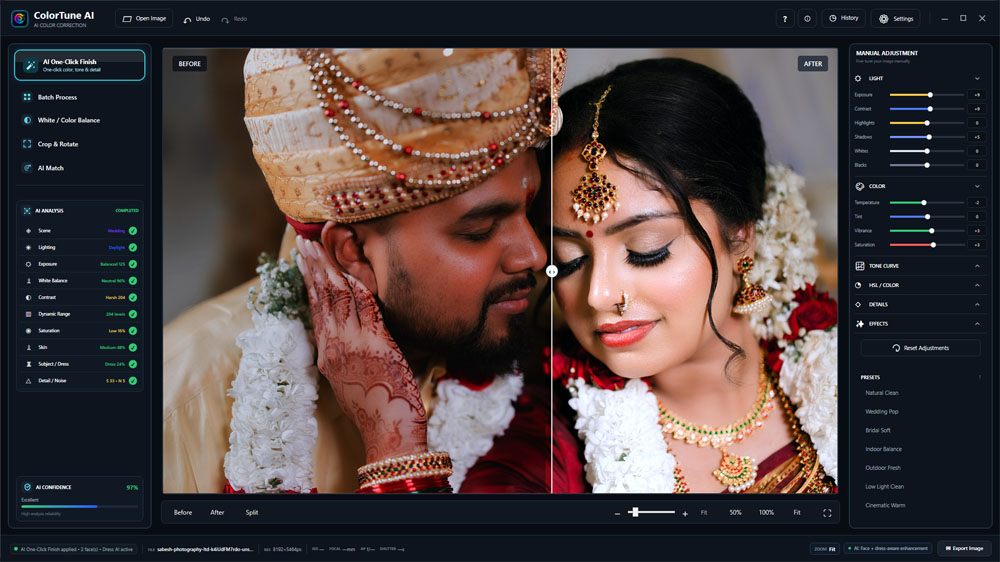
The application is structured around four work areas. The left panel holds the AI tools and a real-time analysis display. The center shows the photograph with selectable comparison modes. The right panel contains manual adjustment sliders and presets. The bottom status bar shows file details, EXIF data, zoom level, AI processing status, and the Export button.
The software supports JPEG, PNG, BMP, TIFF and TIF files, reads embedded EXIF data (ISO, focal length, aperture, shutter speed), and automatically corrects image orientation on load. If you prefer tools that run inside Adobe software, you can explore our separate collection of Photoshop plugins and extensions. ColorTune AI follows a simpler, fully self-contained workflow.
The software is designed for:
- Wedding and event photographers handling large image batches
- Photo studios preparing files for albums, printing, and client galleries
- Album designers who receive flat or color-inconsistent source images
- Portrait editors who want natural color before detailed retouching
- Beginners who need a clear automatic starting point with manual override
- Experienced editors who need speed without losing control
ColorTune AI Color Correction Software | A to Z Complete Guide
AI One-Click Finish — The Core Photo Color Correction Feature
AI One-Click Finish is the flagship feature of ColorTune AI. It is a fully automatic photo enhancement engine that analyzes each photograph individually before applying any correction. The same preset values are not simply placed on every image — the correction is adaptive and built from what the software actually finds in the current photograph.
Before applying any change, the engine analyzes:
- Exposure, contrast, highlights and shadows — to identify over- or underexposed regions
- White balance and color cast — to detect unwanted temperature or tint shifts
- Saturation and vibrance — to assess color density without over-processing
- Face detection and skin tone protection — so skin remains natural across every scene type
- Adaptive scene detection — Portrait, Wedding, Landscape, Indoor, Low-Light, Sunset, Snow and more are recognized automatically
- Dress and subject parsing — garment-aware enhancement protects clothing colors and contrast
- Smart tone mapping — black point, white point, gamma and contrast are optimized for the specific image
- Chroma recovery — restores color density without pushing saturation into unnatural territory
- Selective sharpening with noise reduction — detail is enhanced where the image supports it
The result is a corrected photograph that reflects the actual content of the image, not a generic filter. A dark indoor portrait, a bright outdoor reception, and a colorful wedding stage each receive different treatment. One-Click Finish creates a strong starting point; manual editing controls and presets let you refine the result further.
AI Analysis Panel — Understand Your Image Before You Edit
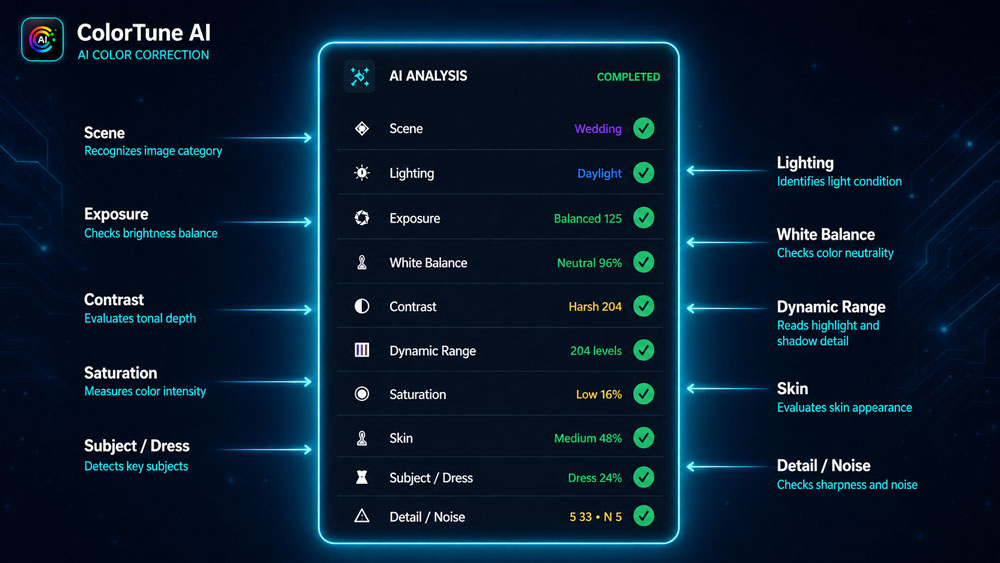
The AI Analysis panel gives you a detailed reading of each loaded photograph across ten diagnostic categories: Scene, Lighting, Exposure, White Balance, Contrast, Dynamic Range, Saturation, Skin, Subject/Dress and Detail/Noise.
This breakdown helps you understand exactly why a photograph may need correction. A portrait might have acceptable exposure but a color cast from LED lighting. A wedding hall image might have neutral white balance but poor dynamic range. Seeing each dimension separately gives you a more accurate picture of the image’s condition than a single quality score.
The analysis panel is also useful for editors who are still building their eye. Seeing which areas of the photograph affect the final look, and in which direction, turns the correction process into a learning experience, not just a one-click action.
AI Confidence Score — A Reliability Check on Every Image
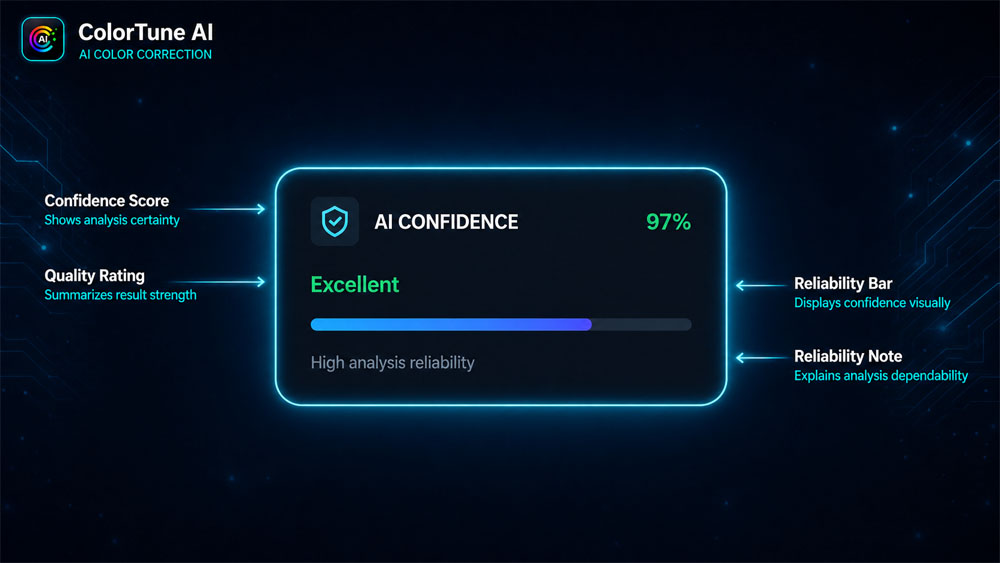
The AI Confidence meter shows how reliably the current image analysis is expected to perform. A sharp, well-exposed photograph with readable detail typically produces a higher confidence rating. A severely underexposed, blurred, or heavily compressed file may produce a lower score, indicating the automatic correction should be reviewed more carefully before export.
The confidence reading is shown as a percentage with a color-coded label, Excellent, Good, Average or Low — and appears alongside the analysis summary before any correction is applied. This means you can make a more informed decision about how much manual adjustment each image may need, rather than discovering problems after the correction has already been applied.
Batch Photo Color Correction for Large Image Sets
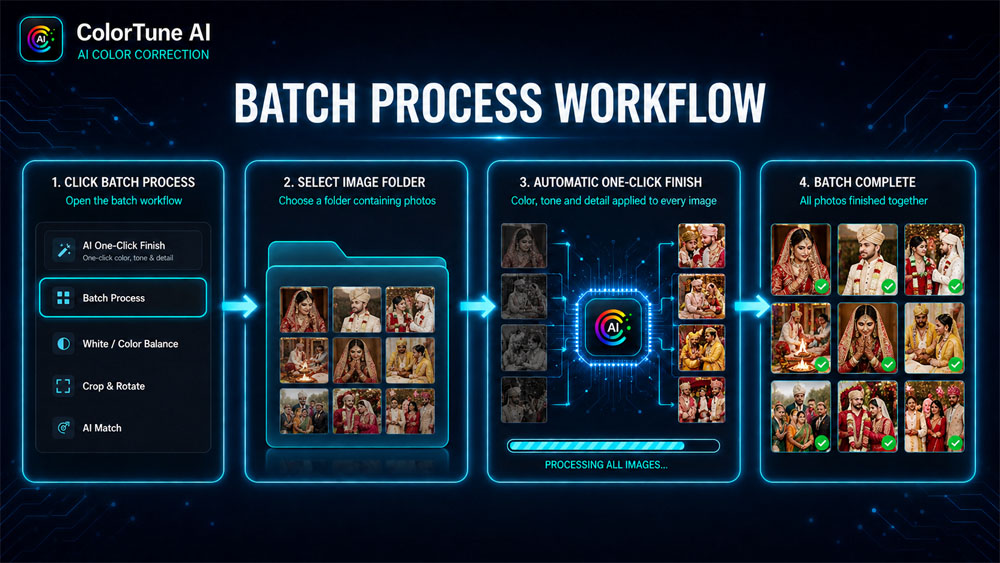
Correcting wedding and event photographs one at a time is where most studio time disappears. The Batch Process feature in ColorTune AI lets you select an entire folder, and the software automatically analyzes and applies AI color correction to every supported image in that folder.
Processed files are saved into a separate ColorTune_Processed folder, keeping source images and corrected versions organized and easy to identify. Progress tracking shows the status of each file as it processes.
Batch processing is not a replacement for image review. Mixed lighting across different parts of an event can mean one setting is not equally suitable for every frame. A practical workflow is to run batch correction on the folder, inspect a sample from each lighting condition, and return to the full editor for any hero images that need individual attention.
After color correction is complete, the finished files can move directly into your wedding album design workflow for page layout and client delivery.
AI Match — Reference-Based Color Grading for Consistent Results
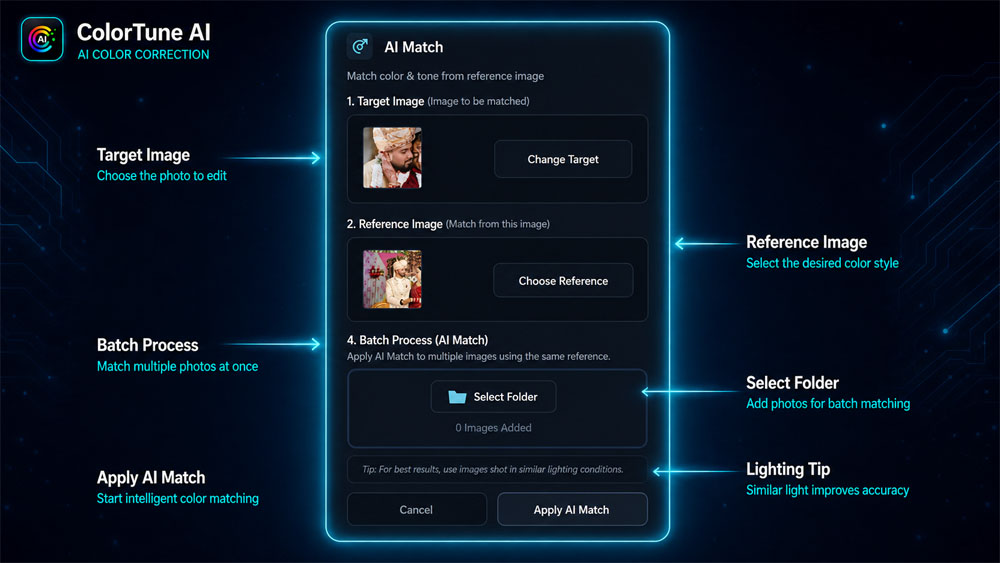
AI Match is a reference-based color grading tool that uses one photograph to guide the correction of another. You choose a target image and a reference image. ColorTune AI compares their overall color tone, brightness, and saturation, then generates a perceptual 3D color profile (33×33×33 LUT) and applies a matching correction to the target.
Key protections built into the matching process include:
- Face and skin tone protection — skin stays natural regardless of the reference look
- Red hue protection — preserves red wedding clothes, lipstick and jewellery
- Compatibility result — tells you whether the reference and target were a sensible pair before you commit
AI Match can be applied to a single image or used with a batch of target photographs, making it especially useful when an entire wedding selection needs to match a single reference look — for example, an outdoor ceremony set matched to an indoor reception that was already corrected. For the best result, choose a reference image captured in reasonably similar lighting conditions.
White and Color Balance Correction
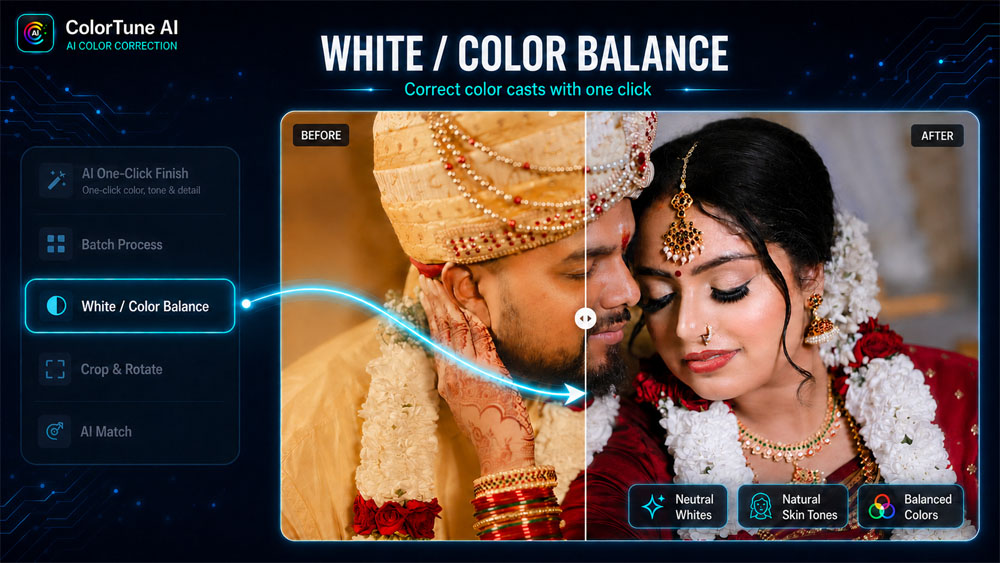
Indoor venue lights, camera white balance errors, and strong reflected color from walls or decorations can all cause a photograph to appear too warm, too cool, green, or magenta. The White / Color Balance tool in ColorTune AI analyzes the image using neutral pixel detection and applies a scene-adaptive temperature and tint correction that also accounts for skin tone areas.
This tool is particularly useful for:
- Wedding halls with mixed LED or fluorescent lighting
- Indoor portraits near colored walls or drapes
- Stage photographs under colored decorative lighting
- Backlit outdoor images with a strong blue or yellow cast
After applying white balance correction, check white clothing, neutral background surfaces, and skin tones. These three areas reveal color cast problems most clearly and confirm whether the correction feels natural for the scene.
Crop and Rotate for Better Composition
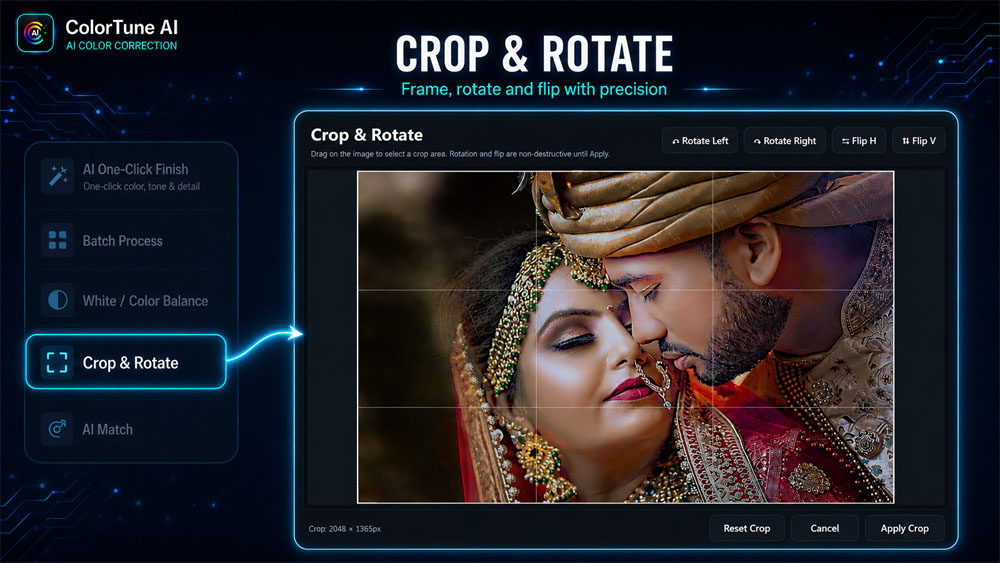
A strong color correction cannot fix weak framing. The Crop & Rotate tool opens a dedicated preview of the currently corrected image, so you judge composition using the actual finished look — not an outdated flat version of the photograph.
Available controls include:
- Freehand crop: drag to select any crop area
- Rotate left / right: 90° increments
- Flip horizontal/vertical
- Non-destructive until confirmed: the crop is applied only when you choose
Keep adequate space around faces, hands, jewellery and clothing when cropping wedding portraits. An image that looks well-framed on screen can become uncomfortable in an album layout or when sent for large-format printing.
Full Manual Adjustment Controls for Fine-Tuning
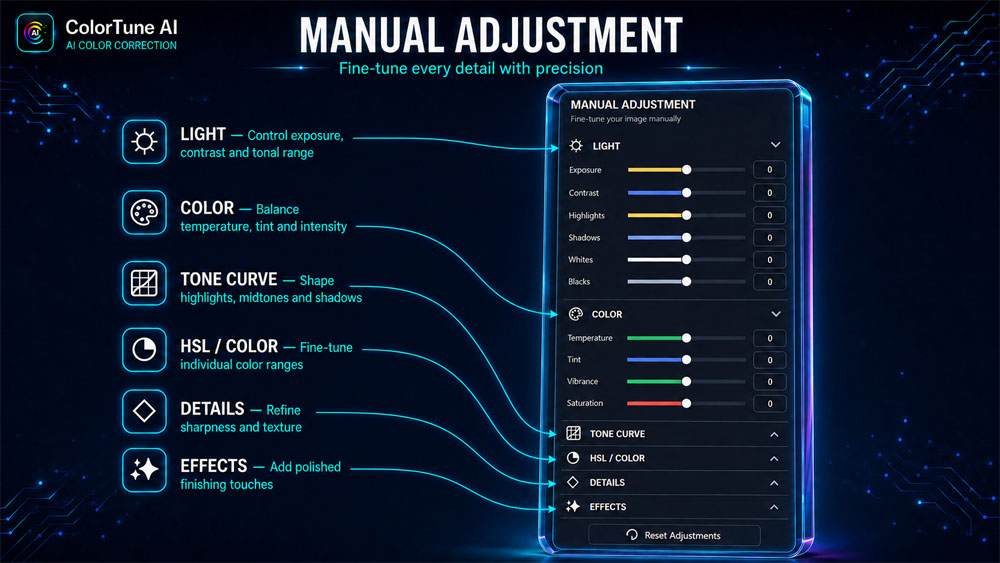
Automatic correction provides the starting point. The Manual Adjustment panel on the right side of the interface gives you precise control over every tonal and color dimension when the automatic result needs refinement. Sections stay collapsed until selected, keeping the interface clean for editors who only need specific controls.
Light Adjustments
The Light section covers the fundamental tonal controls for any photograph. Each slider operates independently across its target range:
- Exposure (−100 to +100) — overall brightness
- Contrast (−100 to +100) — separation between light and dark areas
- Highlights (−100 to +100) — recovery or extension of bright areas
- Shadows (−100 to +100) — lift or crush of dark areas
- Whites (−100 to +100) — white point control
- Blacks (−100 to +100) — black point control
Color Adjustments
The Color section handles global color character. Small changes are often more effective than large ones, especially when clothing and stage lighting already carry strong color:
- Temperature (−20 to +20) — warm or cool the entire image
- Tint (−15 to +15) — correct green or magenta cast
- Vibrance (−20 to +20) — intelligently boost less-saturated colors
- Saturation (−20 to +20) — adjust overall color intensity
Tone Curve
The Tone Curve section provides targeted brightness control across three tonal zones without treating every part of the image the same way:
- Highlights (−30 to +30)
- Midtones (−30 to +30)
- Shadows (−30 to +30)
- Channel selection — RGB, Red, Green, Blue for advanced color grading
HSL / Color Targeting
HSL targeting is most useful when one specific color in the photograph needs adjustment without changing everything else. This is especially valuable when wedding flowers, stage lights, or background colors are too strong while skin tones are already acceptable.
Target colors: Red, Orange, Yellow, Green, Aqua, Blue, Purple, Magenta
Controls per target color:
- Hue shift (−180° to +180°)
- Saturation (−100 to +100)
- Luminance (−100 to +100)
Detail and Sharpening Controls
Detail controls handle the finishing pass for image clarity and noise. These should support the photograph rather than draw attention to themselves — excessive sharpening makes skin rough and creates unwanted bright edges around fabric and jewellery:
- Texture (0 to 15)
- Clarity (0 to 15)
- Sharpening (0 to 20)
- Noise Reduction (0 to 40)
Effects
Effects add optional finishing touches. These are best kept subtle — a heavy vignette or faded tone quickly makes a professional wedding image look dated:
- Vignette (−100 to +100) — darken or lighten edges
- Grain (0 to 100) — add controlled film grain
- Dehaze (−100 to +100) — reduce or add atmospheric haze
- Fade (0 to 100) — lift shadows for a matte / faded look
Seven Ready-to-Use Photo Editing Presets
ColorTune AI includes seven presets designed around common wedding and portrait editing scenarios. Each preset applies a set of manual adjustments that you can use as-is, modify with the sliders, or reset completely:
- Natural Clean: balanced, everyday finish with neutral color and controlled contrast
- Wedding Pop: stronger contrast, richer color and sharper detail for lively wedding coverage
- Bridal Soft: gentle contrast and reduced detail for a soft, flattering portrait finish
- Indoor Balance: compensates for common indoor lighting problems and color casts
- Outdoor Fresh: adds clarity and controlled color lift for daylight images
- Low Light Clean: lifts shadows, reduces noise and recovers detail in darker frames
- Cinematic Warm: warmer tone, deeper contrast and a subtle faded finish for a cinematic look
A preset is not permanently applied when selected. You can adjust sliders after applying it, undo it, or reset the manual panel entirely. This makes presets useful starting points for exploration, not rigid filters.
Before, After and Split Comparison Views
A color correction is easier to judge when the original remains visible alongside the edit. ColorTune AI provides three comparison modes:
- Before: shows the untouched source image
- After: displays the current corrected result
- Split View: places both versions in one view with a draggable white-circle divider
Moving the Split divider across the photograph lets you inspect specific areas — skin, clothing detail, shadow recovery, background color — in context rather than relying on memory. This is more reliable than switching between tabs because even a subtle color shift becomes obvious when both versions are visible side by side.
Viewing controls support zoom from 10% to 400% (Ctrl+Plus / Minus), Fit mode (Ctrl+0), Space+Drag panning and full-screen viewing. Checking important images at 100% zoom before export makes it easier to spot excessive sharpening or noise-reduction artefacts.
Undo, Redo and Edit History
ColorTune AI keeps a full editing history so that revisiting earlier decisions does not mean starting over. Available controls include:
- Unlimited Undo / Redo (Ctrl+Z / Ctrl+Y) for step-by-step movement through recent changes
- Session History panel — view a full list of saved editing states and restore any earlier version
- AI workflow recording — AI One-Click Finish, AI Match and Crop/Rotate actions are each saved as separate history entries
- Reset Adjustments — clears manual slider changes without removing an AI-generated base result
- Unsaved-change warning — prompts you before closing the application or replacing the current image
High-Quality JPEG and PNG Photo Export
When the correction is complete, the Export Image button at the bottom of the interface renders the full-size corrected photograph and saves it to your chosen folder. Export options include:
- JPEG (70–100 quality, default 95) — practical for client delivery, online galleries and most album workflows
- PNG — lossless export for archival or further editing stages
- Custom destination folder
- Automatic file naming — adds “correction” to the original filename so source and output files stay easy to identify
The original file is never overwritten. Exported files are always saved as new, separately named copies.
Performance and Preferences Settings
ColorTune AI includes a Preferences panel that lets you configure how the software performs on your PC:
- Performance Mode: Fast (1280px preview), Balanced (1800px) or High Quality (2560px)
- Live Preview: real-time slider updates on or off
- Auto Analyze: automatic image analysis on load
- Start in Fit View: image opens scaled to fit the window
- Split after Edit: automatically switches to Split view after AI or manual edits
- Remember Adjustments: persists slider values between sessions
- Confirm before Reset: safety prompt before clearing adjustments
- JPEG Quality: set default export quality (70–100)
- Default Export Format: JPEG or PNG
- Default Export Folder: set once, used for every export
ColorTune AI System Requirements
| Component | Minimum Requirement |
|---|---|
| Operating System | Windows 10 (version 1809+) or Windows 11 — 64-bit only |
| Processor | Intel Core i5 (8th Gen) or AMD Ryzen 5 (3000 series) or better |
| RAM | 8 GB minimum — 16 GB recommended for batch processing |
| Graphics | DirectX 11 compatible GPU (Intel UHD 620 or better) |
| Storage | 1.5 GB free space (application + AI models) |
| Display | 1920 × 1080 or higher |
| .NET Runtime | .NET 8 Desktop Runtime (included in the self-contained installer) |
Activation and Licensing
ColorTune AI uses a machine-based (HWID) activation system tied to your CPU, motherboard, and network adapter. Licenses are RSA-signed, which means activation
and verification work completely offline — no internet connection is required after the initial activation.
The license is a lifetime single-PC license permanently linked to one computer. If you need to transfer to a new PC, contact support via WhatsApp at +92 343 3429148.
How to Use ColorTune AI — Step-by-Step Workflow
- Open a photo: Click Open Image and select a JPEG, PNG, BMP, TIFF
or TIF file. The software reads EXIF data and corrects orientation automatically. - Review the AI Analysis: Check the Scene, Lighting, Exposure,
White Balance, Skin, Dynamic Range and AI Confidence readings on the left panel. - Apply AI One-Click Finish: Run the automatic color correction.
The AI analyzes the image and applies an adaptive enhancement based on what it
finds. - Compare the result: Switch to Split view. Move the divider across
skin, clothing, highlights and shadows to judge the correction in detail. - Fine-tune manually if needed: Adjust Light, Color, Tone Curve,
HSL, Detail or Effects sliders on the right panel, or apply one of the seven presets. - Check composition: Open Crop & Rotate if the photograph needs
a cleaner frame or a straighter horizon. - Export the finished file: Click Export Image at the bottom bar.
Select JPEG or PNG, choose the destination folder, and save.
For large sets, use Batch Process instead of opening images one by one. When a group of target images needs to share a reference color look, use the batch option inside AI Match.
Where ColorTune AI Fits in a Wedding Studio Workflow
ColorTune AI is a color correction and image enhancement tool — it does not arrange photographs into album pages. The most practical order for a studio workflow is:
- Select your images from the shoot
- Run ColorTune AI color correction (batch or individual)
- Export corrected files to a finished folder
- Import finished files into your album layout application
If your studio needs automatic page arrangement after the correction step, tools like One Click AI Album software cover that separate part of the production pipeline. Keeping color correction and album layout as distinct steps makes it easier to reuse the same finished photographs for prints, social media, client galleries, and physical albums.
Practical Tips for More Natural Photo Color Correction
- Always start with the highest-quality source image available — AI correction has limits with heavily compressed or severely underexposed files
- Run AI One-Click Finish before making large manual slider changes
- Check white clothing, neutral walls, and skin tones when judging color balance — these reveal cast problems most clearly
- View at 100% zoom before applying heavy sharpening or noise reduction
- Choose a reference image with similar lighting conditions for AI Match — mismatched lighting produces weak compatibility results
- After batch processing, inspect a sample from each lighting condition before approving the entire output folder
- Keep source files until the client has reviewed and approved the finished work
- Use a preset as a starting point, then refine with sliders — do not rely on a single preset for every image in a wedding set
Frequently Asked Questions About ColorTune AI
What does AI One-Click Finish do in ColorTune AI?
AI One-Click Finish analyzes each photograph individually — checking exposure, contrast, highlights, shadows, white balance, color cast, saturation, face/skin regions, clothing and image detail — then applies an adaptive automatic correction. The result reflects the actual content of the image rather than a fixed preset applied to every photograph.
Which image formats does ColorTune AI support?
ColorTune AI supports JPEG, PNG, BMP, TIFF, and TIF input files. It reads embedded EXIF data (ISO, focal length, aperture, shutter speed) and automatically corrects image orientation based on EXIF rotation tags.
Is ColorTune AI a Photoshop plugin?
No. ColorTune AI is a standalone Windows photo color correction application. You can open, correct, compare, and export images without launching Adobe Photoshop or any other host software.
Can ColorTune AI process multiple photos automatically?
Yes. The Batch Process feature lets you select a folder and automatically apply AI color correction to every supported image in that folder. Results are saved in a separate ColorTune_Processed output folder.
What is the difference between AI One-Click Finish and AI Match?
AI One-Click Finish builds a correction from the target photograph’s own analysis — no reference image is needed. AI Match uses a separate reference image to guide the color, tone and brightness of the target toward a similar look.
Does ColorTune AI need an internet connection?
No. ColorTune AI works completely offline after activation. Activation itself uses RSA-signed licenses and does not require a persistent internet connection. All AI processing runs locally on your Windows PC.
Can I adjust the automatic result manually?
Yes. The right panel contains full manual controls for Light (Exposure, Contrast, Highlights, Shadows, Whites, Blacks), Color (Temperature, Tint, Vibrance, Saturation), Tone Curve (RGB + individual channels), HSL targeting, Detail and Effects. You can also apply presets, undo changes, restore history states or reset the sliders entirely.
What export formats are available in ColorTune AI?
ColorTune AI exports corrected photographs as JPEG (70–100 quality) or PNG. You can choose a custom destination folder and the software names the exported file automatically based on the original filename.
Is ColorTune AI useful for wedding photographers?
Yes. Its scene-aware AI One-Click Finish, skin tone and dress-aware analysis, AI Match for consistent color across a wedding set, batch processing, white balance correction, seven wedding-specific presets, and before/after comparison tools are designed around real wedding and studio photo workflows.
What are the minimum system requirements for ColorTune AI?
Windows 10 (1809+) or Windows 11 (64-bit), Intel Core i5 8th Gen or AMD Ryzen 5 3000 series, 8 GB RAM (16 GB recommended), DirectX 11 GPU, 1.5 GB free storage, and a 1920×1080 display. The self-contained installer includes the .NET 8 Desktop Runtime.
Final Thoughts on ColorTune AI Photo Color Correction Software
ColorTune AI brings automatic photo color correction and detailed manual control into one focused Windows workspace. AI One-Click Finish handles the first correction. The AI Analysis panel explains the image before you touch it. AI Match builds consistency across an entire set. Batch processing removes the biggest time cost in studio photo preparation. And manual controls — from the Light sliders down to individual HSL color targeting — let you refine every detail when the automatic result needs extra attention.
The before-and-after Split view makes every change visible and auditable. History, Undo/Redo, and a non-destructive export approach make the workflow practical for real client delivery. Whether you are correcting a single portrait or preparing hundreds of wedding images for album layout, ColorTune AI gives you a faster, cleaner, and more consistent finishing process on your Windows PC.
Note:
If you’re facing issues with downloading the file such as "it may take up to 24 hours to be able to view or download the file" So please ensure you are logged into your Google account before attempting to download. This usually resolves the issue and allows you to download the file without any waiting time.