Luckystudio4uLuckystudio4u
  • Wedding Album Design
    • Wedding Album Cover
    • 12×36 Album PSD
    • 12×18 Album PSD
    • 12×30 Album PSD
    • 17×24 Album PSD
    • 24×18 Album PSD
  • Birthday Album Design
  • Photoshop Add-ons
  • Graphic Design Templates
  • Album Designs Software
Luckystudio4uLuckystudio4u
Search
  • Wedding Album Design
    • Wedding Album Cover
    • 12×36 Album PSD
    • 12×18 Album PSD
    • 12×30 Album PSD
    • 17×24 Album PSD
    • 24×18 Album PSD
  • Birthday Album Design
  • Photoshop Add-ons
  • Graphic Design Templates
  • Album Designs Software
Follow US
  • Contact us
  • DMCA
  • Privacy Policy
  • Terms and Conditions
  • Donate
  • Join Our Whatsapp Group
  • Join Our Telegram Group
© 2016-2022 All rights reserved Luckystudio4u.com

How to Use Libraries Panel in Photoshop

Last updated: January 1, 2026 12:49 AM
Published April 8, 2023 extensions-scripts

The Libraries panel has been available since the introduction of Photoshop CC 2014 but what exactly is it and why is it useful? In this article, I’ll give you a run-through of the tool so you’ll be able to use it to speed up your workflow and keep your assets organized. You Can Also Download DuoTone Mix Photoshop Panel.

Tutorial Details:

  • Program : Adobe Photoshop CC 2015
  • Estimated Completion Time : N/A
  • Difficulty : Easy

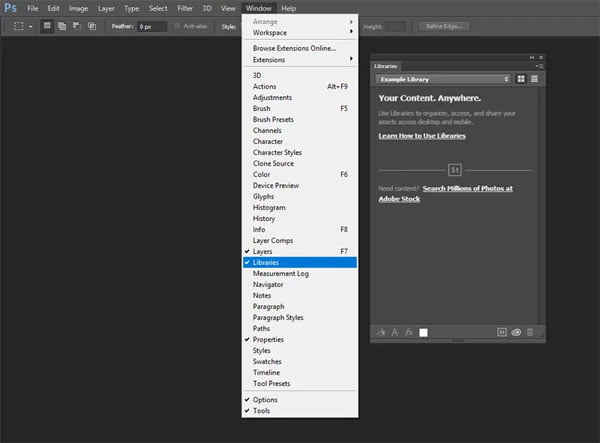
The Libraries panel has been available since the introduction of Photoshop CC 2014 (Window > Library), but what exactly is it and why is it useful? In this article, I’ll give you a run-through of the tool so you’ll be able to use it to speed up your workflow and keep your assets organized.
How to Use Libraries Panel

What are Libraries?

The idea of the panel is to store the different elements you might want to use more than once, potentially across more than one document, or even across other software like Illustrator, After Effects and Premiere Pro, as long as they’re Creative Cloud versions.

As an example, if you’re a photographer or a designer and you use a logo quite often, it would be much more useful to be able to grab it from the Libraries panel then to have to find it from your hard drive and drag it into your document each time.

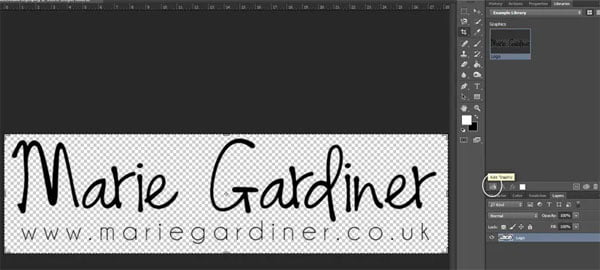
If your logo is in the Layers panel as part of a project, you can click the Add Graphic button in Libraries and it’ll add it to your library.
How to Use Libraries Panel

The great thing about this is that because it’s the Creative Cloud, you’ll be able to now use it wherever you log in. So if you have two different computers, and Photoshop installed on both, you’ll be able to access them from either one. To use the logo again, just reverse your process and drag it from the Libraries panel to your document. If you’re not working online or don’t want to use Cloud, you can still use Libraries to organise your elements locally. You Can Also Download Reorder Layer Panel Sorting Kit.

Creating Libraries:

You can add just about anything to Libraries. It’s not only for images, you can store colour swatches, layer styles, font types… just about everything. If you don’t want your Library to be too cluttered, you can create additional Libraries for different projects, or different elements.
How to Use Libraries Panel

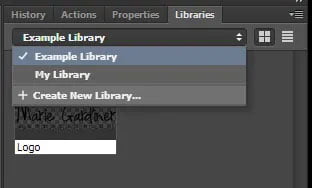
Just go to the drop-down box in the panel and click +Create New Library.

You can also create a new Library from a document, which will automatically add Character Styles, Colours, Layer Styles and Smart Objects.

A Closer Look at Libraries:

  1. This is your libraries list, where all the libraries you create will be, and where you create new ones
  2. These are the elements you add to your library
  3. This is ‘Add Graphic’ where, as described earlier, you can add something new to your Library
  4. Add a Character Style. When you click on a font and then this button, it’ll add that font to your Library
  5. including any formatting like size and style.
  6. Add Layer Style is for Photoshop only as it directly impacts your PS layers.
  7. Add Foreground colour does exactly what you’d expect and lets you add a foreground color to your Library. Depending on the layer you click, Add Fill Colour might also appear as an option.
  8. This is a handy way to check Adobe Stock images and add any favorites to your Libraries to use again in future.
  9. Synch your Libraries across your various platforms.
    Delete!
  10. Shows your items as icons so you can see a preview of what they are.
  11. Shows your assets as a list, grouped by type.
  12. This is your options or settings, so there are options to view online or rename Libraries, for example.

Updating Assets:

If you add something to a library and then make a change to that original asset (say you update a logo), that could become problematic. Thankfully, Adobe thought of this, and you can choose to link (and unlink) your assets. If you link something, it stays associated with the original document, so when you make changes, those are reflected in each instance of the asset. If you consider how Smart Objects work when you place them in a document, it’s a similar thing.

If your logo, for example, wasn’t linked, and you changed the original, the old version would still be in the library. If it was linked, it would update. If your element is linked, you’ll see a little cloud next to it.

Conclusion:

Libraries are most useful for people who work across more than one Adobe CC software, or across multiple networks (home and an office, for example) but that’s not to say they’re no use to the rest of us.

Linking your assets means that changes are more or less in real time and you won’t have to hunt out the latest version of a particular graphic. Libraries mean better organization and more efficiency across projects because of that. If you’ve not given the Libraries Panel a try yet, I highly recommend giving it a go.

Subscribe Our Telegram Channel Subscribe Our WhatsApp Channel

Note: If you’re facing issues with downloading the file such as "it may take up to 24 hours to be able to view or download the file" So please ensure you are logged into your Google account before attempting to download. This usually resolves the issue and allows you to download the file without any waiting time.

Note: If you're having trouble extracting the downloaded file, such as "wrong password" errors, please download and install 7-Zip software for extracting your file. This free software solves most extraction problems.
Share This Article
Facebook Twitter Pinterest Whatsapp Whatsapp Tumblr Reddit Telegram Copy Link
By Khalid Mehboob
Author
Follow:
My name is Khalid Mehboob Soomro, and I'm a contributor on luckystudio4u.com because I have 10 years of experience in graphic designing, I know which graphic resources do what and how to use them, And that's why I'm writing here description about of graphic resources.

Search Graphic Resources

Exclusive Products

Julie Iconic Album Design Software
Album Designs Software
InPix Pro Auto Photo Finishing, Color Correction & Retouching Software
Photo Editor
Album-Xpress-13.5-Best-Photo-Album-Design-Software
Album Xpress PRO 13.5 | Best Photo Album Design Software
Album Designs Software
EDIUS 11 Full Version Download
Software
One Click AI Album 2026 Software
Album Designs Software
AlbumPoint 6.75 - Fastest Album Designing Software
AlbumPoint 6.75 – Fastest Album Designing Software
Album Designs Software
One Click AI Album 2025
One Click AI Album 2025 Software
Album Designs Software
edius x free download
EDIUS X Full Version Download
Software

Trending: 12x36 Album Designs PSD (2026)

Marathi 12×36 Album PSD Free Download 2025
12x36 Album PSD
20 New Marathi Wedding Album Design PSD 12x36, 12x18
20 New Marathi Wedding Album Design PSD 12×36, 12×18
12x36 Album PSD
12X36 Marathi Wedding Album Design PSD For Photographers
12×36 Marathi Wedding Album Design PSD For Photographers
12x36 Album PSD
10 Modern Marathi Wedding Album PSD Design 12x36
10 Modern Marathi Wedding Album PSD Design 12×36
12x36 Album PSD
20 Marathi Wedding Album Design PSD 12x36 Templates 2026
20 Marathi Wedding Album Design PSD 12×36 Templates 2026
12x36 Album PSD
20 Traditional Marathi Wedding Album PSD 12x36 Templates 2026
20 Traditional Marathi Wedding Album PSD 12×36 Templates 2026
12x36 Album PSD
15 Creative Marathi Wedding Album Design 12x36 PSD Templates
15 Creative Marathi Wedding Album Design 12×36 PSD Templates
12x36 Album PSD
20 Marathi Wedding Album Design 12x36 PSD Templates
20 Marathi Wedding Album Design 12×36 PSD Templates
12x36 Album PSD

Categories

  • 12×18 Album PSD26
  • 12×30 Album PSD21
  • 12×36 Album PSD218
  • 17×24 Album PSD4
  • 24×18 Album PSD5
  • AE Projects1,005
  • AE Templates74
  • AE Transitions28
  • After Effect113
  • Album Designs Software17
  • Birthday Album Design18
  • Bokeh Effect56
  • Broadcast Packages22
  • Brochures48
  • Business Cards88
  • Calendar38
  • DaVinci Resolve12
  • Digital Backdrop168
  • Digital Paper70
  • Editing Services2
  • extensions-scripts39
  • Facebook86
  • Final Cut Pro Assets6
  • Flyer263
  • Fonts187
  • Free Invitation Templates93
  • Free Mockup775
  • Gradients16
  • Graphic Design Templates713
  • Graphics & Design153
  • Illustrator Files66
  • Instagram184
  • JPG And PNG111
  • Lightroom Presets940
  • Logo Projects51
  • LUTs183
  • Photo Backgrounds182
  • Photo Collage Templates112
  • Photo Editor65
  • Photo Effects376
  • Photo Frames68
  • Photo Overlays968
  • Photo Templates54
  • Photoshop606
  • Photoshop Actions1,936
  • Photoshop Background295
  • Photoshop Brushes185
  • Photoshop Overlays650
  • Photoshop Patterns195
  • Photoshop Plugins & Extensions159
  • Photoshop Shapes39
  • Photoshop Styles61
  • Photoshop Tutorials15
  • Plugins & Extensions7
  • Premiere Pro99
  • Premiere Transition21
  • Premium Album Designs67
  • Procreate30
  • Procreate Brushes51
  • Product Promo26
  • Project Files30
  • Quotes23
  • Raw Presets62
  • Social Media239
  • Software56
  • Studio Background40
  • Swatches5
  • Text Effects239
  • Textures217
  • Titles31
  • Transitions35
  • Transparent PNG320
  • Video course52
  • Video Editor13
  • Video Effects74
  • Video Footage39
  • Video Plugins16
  • Video Projects130
  • Videohive524
  • Wedding Album Cover41
  • Wedding Album Design124
  • Wedding Album DM86
  • Wedding Backgrounds31
  • Youtube41

Recommended Posts

10000 Text Presets

Videohive – 10000 Text Presets

Astro Panel v6

Astro Panel for Adobe Photoshop v6

Goodbye Greenscreen v1.9 Plugin

Goodbye Greenscreen v1.9 Plugin NVIDIA-GPU Win

PR Effects Visualizer

Videohive – PR Effects Visualizer

© 2016-2025 All rights reserved Luckystudio4u.com
  • Contact us
  • DMCA
  • Privacy Policy
  • Terms and Conditions
  • Donate
  • Join Our Whatsapp Group
  • Join Our Telegram Group
lUCKYSTUDIO4U PNG LOGOO lUCKYSTUDIO4U PNG LOGOO
Welcome Back!

Sign in to your account

Username or Email Address
Password

Lost your password?