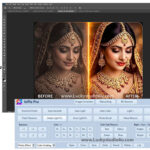
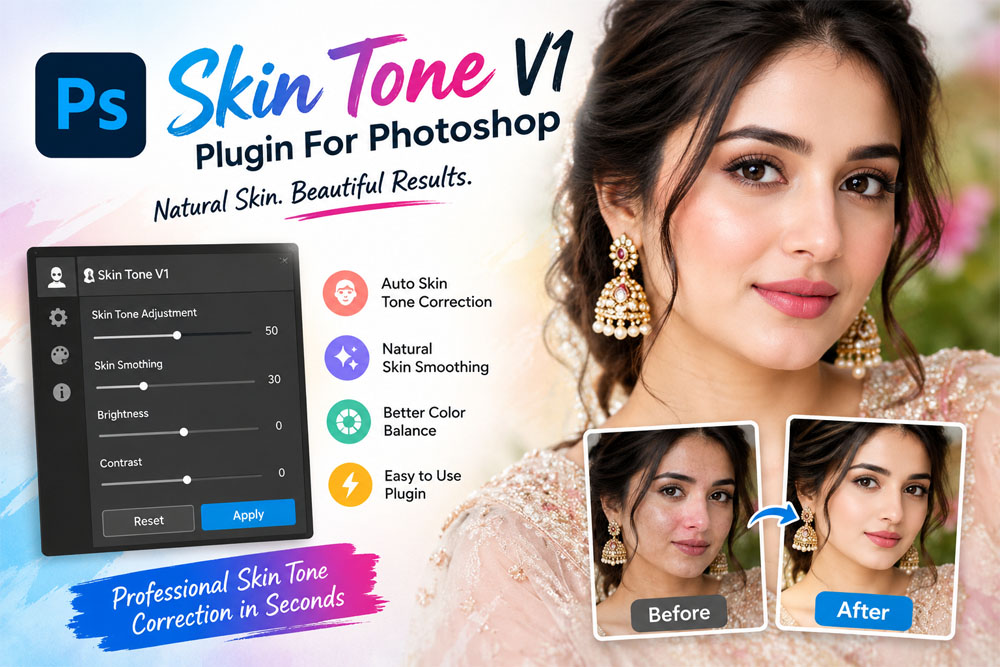
Skin color can look different across the face, hands, and other exposed areas in the same photograph. Correcting these differences manually takes time, especially when editing wedding albums, studio portraits, and large photoshoots. The Skin Tone V1 Plugin For Photoshop is designed to make this process easier by automatically balancing visible skin tones and helping portraits look more consistent. It can correct reddish areas, warm up cool skin shades, and reduce unwanted magenta tones while keeping the natural appearance of the photo. Instead of selecting and adjusting every area separately, photographers can use automatic corrections to speed up their editing workflow. This can be particularly useful when preparing several portraits for clients. For more tools that can improve a photo editing workflow, explore our collection of Photoshop plugins and editing tools.
Overview of Skin Tone V1 Plugin
Skin Tone V1 is a Photoshop-focused editing tool designed to even out skin color across different visible areas of a photograph. It analyses exposed skin, calculates an average skin shade, and adjusts other detected areas to create a more balanced appearance. The correction can extend beyond the face to areas such as the hands, ears, elbows, and other visible parts of the body.
This type of correction is useful when different areas of the skin appear red, cool, or uneven because of lighting conditions. Rather than manually masking each section and adjusting its color, photographers can use an automated process to make the overall skin tone more consistent. The aim is to improve color balance while retaining the natural look and detail of the original image.
Key Features of Skin Tone V1
- Automatic skin detection: Identifies visible skin areas for more consistent color correction.
- Even skin color: Helps balance differences between the face, hands, ears, and other exposed areas.
- Redness reduction: Corrects unwanted reddish tones on areas such as hands and elbows.
- Cool tone correction: Warms up skin that appears too cool or pale.
- Magenta tone adjustment: Helps reduce unwanted magenta shades for a more balanced result.
- Simple editing process: Reduces the need for time-consuming selections, brushing, and manual masking.
- Consistent portrait results: Helps maintain a more uniform skin appearance across multiple photos.
- Batch-editing workflow: Can be useful for photographers handling large collections of portraits, depending on the supported workflow.
How Does the Skin Tone Correction Work?
The process focuses on detecting visible skin areas and calculating a representative skin shade from the photograph. It then adjusts detected areas toward that shade to reduce color differences. For example, if a person’s face looks neutral but their hands appear noticeably red, the correction can help bring those areas closer to a consistent tone.
This approach can save time compared with selecting each affected area individually. However, the final result still depends on the original lighting, image quality, and skin colors in the photograph. Reviewing the corrected image is important because no automatic adjustment can produce the right result for every picture without checking it.
Why Photographers Can Benefit From This Plugin
Wedding and portrait photographers often work with hundreds of images from a single session. Differences in lighting, camera settings, and the shooting environment can make skin tones look inconsistent from one photograph to another. Correcting every image manually can slow down the delivery process.
A skin tone correction tool can help reduce repetitive editing work and make it easier to prepare portraits for albums, prints, and client galleries. It may be especially useful for close-up portraits, bridal photography, fashion shoots, and studio sessions where natural-looking skin color is important.
For the best results, use automatic correction as a starting point rather than assuming every image needs the same adjustment. Check the face and hands carefully, retain natural skin texture, and avoid corrections that make the skin look flat or overly smooth.
Tips for Natural-Looking Skin Tones
- Start with a well-exposed photograph whenever possible.
- Check the face, neck, and hands together instead of judging only one area.
- Avoid excessive warming that makes skin look orange or unnatural.
- Review the image at both normal viewing size and close zoom.
- Compare the corrected image with the original to make sure important skin details remain intact.
- For a large photoshoot, review a few sample images before applying the same workflow to the full collection.
Other Photo Enhancement Tools
Skin color correction is only one part of portrait editing. Depending on the image, photographers may also need exposure adjustments, color balancing, and other retouching controls. The Imagenomic Professional Plugin Suite is another option to explore for portrait retouching workflows.
For photographers who want to focus on overall image enhancement as well as skin color, Radiant Photo image enhancement software may also be worth exploring. Choose tools according to the type of correction needed, and avoid applying multiple strong adjustments that can make a portrait look unnatural.
System Requirements
The basic requirements listed for this version are:
- Operating system: Windows 7, 8.1, 10, or 11
- Processor: 1 GHz minimum; 2.4 GHz recommended
- RAM: 2 GB minimum; 4 GB or more recommended
- Free storage: Approximately 200 MB or more
These are the requirements supplied for the described version. Actual compatibility may vary by installer build and Photoshop version, so check the package information before installation.
Winrar File Pass: 123
Conclusion
Skin Tone V1 Plugin For Photoshop is designed to simplify skin color correction by balancing uneven tones across visible skin areas. Its automatic approach can help photographers reduce repetitive manual work, particularly when editing wedding albums, portraits, and studio photos. For natural results, review the correction carefully and make sure the finished image retains realistic skin color and texture.
Note:
If you’re facing issues with downloading the file such as "it may take up to 24 hours to be able to view or download the file" So please ensure you are logged into your Google account before attempting to download. This usually resolves the issue and allows you to download the file without any waiting time.