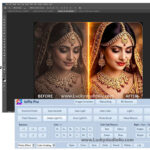
Imagenomic Portraiture 4.5 Free Download is a professional portrait retouching plugin designed to make skin smoothing and photo enhancement easier in Adobe Photoshop and Lightroom. It helps photographers improve uneven skin tones, reduce visible imperfections, and maintain important details such as pores, hair, and facial features. Instead of spending hours on manual retouching, you can use its automatic adjustments and masking controls to get a more balanced portrait.
The Portraiture plugin is especially useful for wedding photographers, portrait studios, and photo editors who work with a large number of client photographs. Its intelligent skin retouching tools help create a consistent appearance while giving you control over the final result. You can also explore our collection of professional Photoshop plugins for more photo editing and retouching resources.
Whether you are looking for the Imagenomic Portraiture 4 plugin, want to understand how the Portraiture filter works in Photoshop, or need a faster way to retouch portraits, this guide covers its main features and uses.

Overview of Imagenomic Portraiture 4.5
Imagenomic Portraiture 4.5 is a dedicated skin retouching plugin that helps improve portraits without requiring complicated manual masking for every photograph. It analyzes the image and applies skin smoothing to the areas that need attention. This makes it easier to reduce uneven texture and blemishes while keeping the photograph looking natural.
One of the main strengths of Portraiture is its balance between automatic editing and manual control. You can start with its skin smoothing adjustments and then refine the result using the available controls. This is useful when different photographs have different lighting conditions, skin tones, and levels of detail.
The plugin also provides masking options to help protect areas that should retain their original sharpness. For example, when retouching a close-up portrait, you may want to improve the skin while keeping the eyes, eyelashes, eyebrows, lips, and hair clear. These adjustments help prevent the overly smooth appearance that can sometimes happen with basic portrait filters.
Imagenomic Portraiture is designed to work within supported photo editing applications, including Adobe Photoshop and Lightroom. Once installed, the plugin becomes part of your editing workflow, so you do not need to open a separate image editor for every retouching task.
What Makes the Portraiture Plugin Useful for Photoshop?
The Portraiture plugin for Photoshop is useful because it focuses on one of the most time-consuming parts of portrait editing: improving skin while keeping the rest of the photograph intact.
For example, a wedding photographer may have hundreds of bridal and couple portraits to prepare for an album. Applying the same manual retouching process to every face can take a lot of time. Portraiture offers automatic skin adjustments that provide a starting point, while its controls allow the editor to refine individual results when needed.
It is also helpful for beauty portraits, fashion photography, studio headshots, and close-up photographs. You can use the Portraiture filter to reduce minor skin imperfections and balance uneven tones without changing the complete appearance of the image.
For other portrait editing options, you can also check SkinFiner for natural skin smoothing. Both tools focus on portrait retouching, although their controls and editing workflow are different.
Key Features of Imagenomic Portraiture 4.5
Imagenomic Portraiture combines automatic skin retouching with adjustment and masking options. Here are some of the features that make this plugin useful for everyday portrait editing.
- AI-Powered Skin Smoothing: Portraiture analyzes the photograph and applies smoothing to the areas where it is needed. This helps reduce visible imperfections while preserving important skin details.
- Uniformity Algorithm: The Uniformity feature helps even out inconsistent skin tones and reduces the appearance of blemishes, giving portraits a more balanced finish.
- Advanced Masking: Masking controls help you protect important areas such as eyes, hair, and other facial details from unnecessary smoothing.
- Fill Light Adjustment: The Fill Light tool helps improve shadowed areas and bring out facial details without simply increasing the overall exposure.
- Skin Tone Correction: Adjustments help refine the appearance of skin colour and create a more consistent result across portraits.
- Manual Editing Controls: You can fine-tune the effect instead of depending entirely on automatic settings. This is important when working with different lighting and skin conditions.
- Photoshop Integration: The Portraiture Photoshop plugin appears inside the supported application’s filter menu, allowing you to use it without leaving your regular editing workspace.
- Lightroom Support: Compatible Lightroom installations can also use Portraiture as part of a portrait editing workflow.
- Natural-Looking Results: The combination of skin smoothing and detail control helps avoid an artificial, plastic-looking appearance when the adjustments are used carefully.
How to Use the Portraiture Filter in Photoshop
After installing the plugin, you can access the Portraiture filter directly from Photoshop. The following steps explain how to use it on a portrait photograph.
- Open Your Photograph: Launch Adobe Photoshop and open the portrait you want to retouch. For better results, start with a good-quality image that has sufficient facial detail.
- Find the Portraiture Plugin: Go to the top menu and select Filter > Imagenomic > Portraiture. The Portraiture plugin interface should open on your screen.
- Check the Skin Smoothing: Review the initial skin retouching effect. Portraiture automatically analyzes the image and applies adjustments according to the selected settings.
- Adjust the Retouching Strength: Use the available controls to refine skin smoothing and tonal adjustments. Avoid applying excessive smoothing, especially on close-up photographs.
- Refine the Mask: Check areas such as the eyes, eyebrows, lips, and hair. Adjust the masking where necessary to keep these details clear.
- Compare Before and After: Review the original and edited image to make sure the skin looks balanced and natural.
- Apply the Changes: Once you are satisfied with the result, apply the filter and continue editing your photograph in Photoshop.
This workflow is useful for bridal portraits, couple photographs, fashion images, and studio headshots. Small adjustments usually produce better results than applying strong smoothing to the entire face.
Where to Find Imagenomic Portraiture in Photoshop
One common question among new users is where the Portraiture plugin appears after installation. Unlike Photoshop’s built-in filters, Imagenomic Portraiture is listed under its own group in the Filter menu.
Open a photograph and follow this menu path:
Filter > Imagenomic > Portraiture
Click Portraiture to launch its editing interface. If the Imagenomic option is missing, check whether the plugin was installed for the correct Photoshop version. You may also need to close and restart Photoshop after installation.
If you have several Photoshop versions installed on the same computer, make sure the Portraiture installer is configured for the version you regularly use. Installing a plugin for a different application folder may prevent it from appearing where you expect.
Portraiture Filter for Wedding and Studio Photography
Portraiture can be useful in several types of photography where facial details and natural-looking skin matter. Its automatic retouching tools can provide a starting point before making final adjustments.
- Wedding Album Photography: Improve bridal portraits, groom photographs, and couple images while keeping facial details visible.
- Beauty Photography: Refine skin texture and uneven tones in close-up beauty photographs.
- Studio Portraits: Create a consistent skin appearance across individual and group portrait sessions.
- Fashion Photography: Reduce minor imperfections while maintaining details needed for professional images.
- Client Photo Editing: Save time during repetitive retouching work and maintain a similar editing style across a collection.
Portraiture is focused mainly on skin retouching. For additional photo correction and finishing work, you can also explore Perfectly Clear for automatic photo enhancement and Beauty Retouching Tools for portrait editing.
Imagenomic Portraiture 4.5 for Photoshop and Lightroom
Portraiture is available as a plugin for supported versions of Adobe Photoshop and Lightroom. This gives photographers flexibility when choosing how to edit their images.
Photoshop users can open the Portraiture filter from the Imagenomic submenu under Filter. This is useful when you want to retouch a particular photograph and continue working with layers and other Photoshop tools.
Lightroom users can access compatible versions through the supported Lightroom plugin workflow. The exact process depends on the installed Lightroom Classic and Portraiture versions.
Before installing Portraiture, check that the installer matches your operating system and host application. Compatibility can vary between older and newer software versions, so the same installer should not be assumed to work with every Photoshop or Lightroom release.
Technical Details and Software Information
- Software Name: Imagenomic Portraiture
- Version Covered: 4.5
- Software Type: Portrait Retouching Plugin
- Main Purpose: Skin Smoothing and Portrait Enhancement
- Supported Editing Applications: Compatible versions of Adobe Photoshop and Lightroom Classic
- Primary Features: AI Skin Smoothing, Uniformity, Masking, and Fill Light
- Editing Use: Wedding Photography, Beauty Portraits, Fashion Images, and Studio Photography
Actual compatibility depends on the specific Portraiture build, operating system, and host application. Check the version information included with your installer before setting it up.
Zip File Password: 123
Previous Versions of Imagenomic Portraiture
If you need an older Portraiture release for a previous Photoshop installation or an older editing setup, the following versions are listed separately.
| Software Name and Version | Download Link | Password |
| Imagenomic Portraiture V3.3 Plugin | www.Luckystudio4u.com | |
| Imagenomic Portraiture v2.3.4 Plugin | www.Luckystudio4u.com |
Conclusion
Imagenomic Portraiture 4.5 is a useful Photoshop and Lightroom retouching plugin for photographers who want to improve skin texture and create balanced portraits without spending too much time on manual adjustments. Its skin smoothing, Uniformity, masking, and Fill Light features provide useful controls for everyday portrait editing.
For wedding photographers and studio editors, the Portraiture plugin can make repetitive skin retouching work easier while helping preserve important facial details. You can use it for bridal portraits, couple photographs, beauty images, and other projects that need a clean, natural finish.
Whether you are searching for the Imagenomic Portraiture 4 plugin, the Portraiture filter for Photoshop, or a dedicated portrait retouching solution, this version offers a focused set of tools for improving your photography workflow.
Frequently Asked Questions About Imagenomic Portraiture
What is Imagenomic Portraiture 4.5?
What is the Portraiture plugin used for?
Where can I find Portraiture in Photoshop?
Is Imagenomic Portraiture a Photoshop plugin?
Does Portraiture work with Lightroom?
What is the Portraiture filter in Photoshop?
Can Portraiture smooth skin without removing natural texture?
Why is Imagenomic Portraiture not showing in Photoshop?
Is Portraiture 4.5 the latest Imagenomic version?
Note:
If you’re facing issues with downloading the file such as "it may take up to 24 hours to be able to view or download the file" So please ensure you are logged into your Google account before attempting to download. This usually resolves the issue and allows you to download the file without any waiting time.